


Use this journal page when you want the quick written checklist. Use the carousel when you want the visual version with screenshots, Adam's before/after CV previews, and the PDF links at the end.
The flow accepts English, Arabic, or natural dialect input while keeping the final CV output in polished, typo-free professional English.
What the tutorial covers
- Open Talin from the website menu or the in-app green arrow.
- Click Get Started.
- Accept the terms and sign up with Google, LinkedIn, or email.
- Fill in your personal information.
- Click Save Changes, then Finish setup.
- Upload your original CV.
- Accept AI processing consent, then upload and parse with AI.
- Open Work Experience.
- Review duties in your own words; English, Arabic, and natural dialect are all fine.
- Under Years of experience, click AI Enhance and accept the consent.
- Review the changed text and edit anything that does not match your experience.
- Open Account, then Profile Photo.
- Click Upload Photo, crop if needed, and upload the saved square photo.
- Choose the Identity & Contact details and toggles you want included.
- Pick the template and choose whether to include your profile photo.
- Scroll up and click Start Tailored Resume.
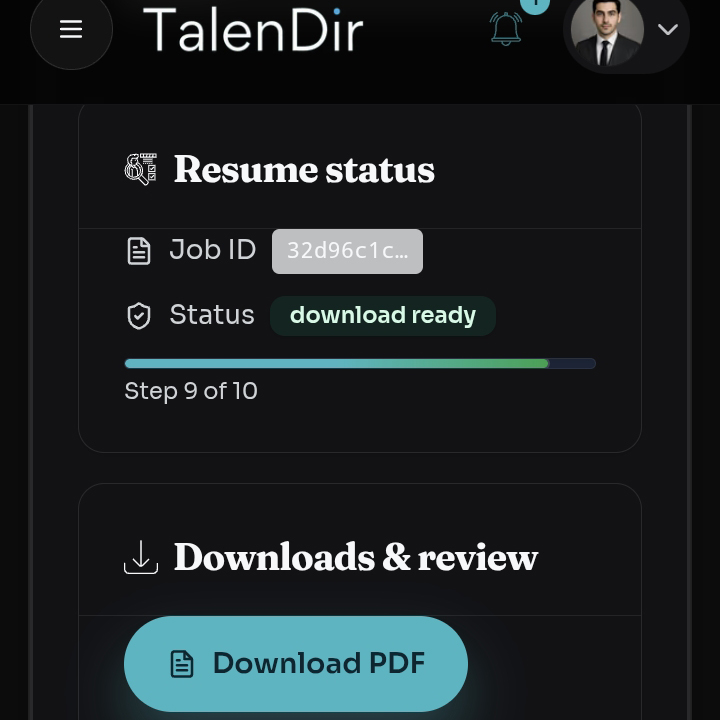
- Click Download PDF.
The important rule
Talin improves structure, wording, and professional English. It should not invent your career. Add accurate details, keep the experience true, and review the final CV before you share it.

